Step-by-Step Guide
From initial setup to a successful rally - here you'll learn everything you need to know.
Before the Rally
Enter Team Data
Open the app and go to the "Driver" tab or to Settings under "Team & Rally".
- Start Number - Your official start number for the rally
- Team Name - Optional: Name of your team or driver/navigator
- Vehicle - Optional: Designation of your vehicle
- Start Interval - Time between starts (default: 60 seconds)

Team and rally settings
Set Official Start Time
Enter the official start time of the first team (start number 1).
- Go to Settings → Timer & Start → Official Start Time
- Select the date and time of the rally start
- The app automatically calculates your personal start time based on your start number and the start interval
Example: With start time 10:00 AM, start number 5, and 60 seconds interval, your start time is 10:04:00 AM.
Create Sections
You have two options to capture your rally sections:
Option A: Enter Manually
- Go to the "Sections" tab
- Tap "+" to add a new section
- Enter name, target distance (in km), and target time (in minutes:seconds)
- Average speed is calculated automatically
Option B: Scan Roadbook (AI)
- Make sure an AI provider is configured in settings
- Tap the camera icon in the Sections tab
- Photograph a page of your roadbook
- AI automatically extracts all section data
- Review the recognized data and confirm the import
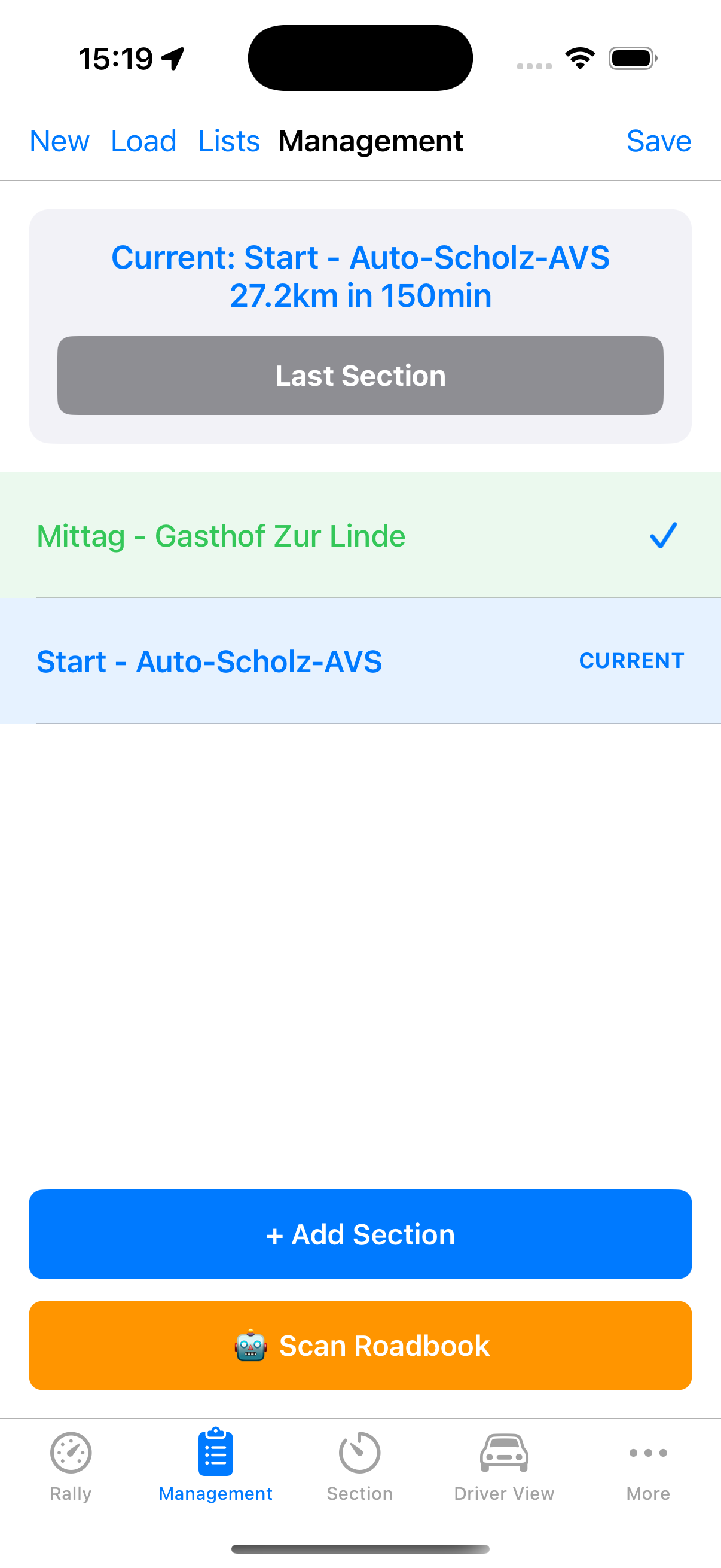
Create and manage sections
Set Up AI Provider (Optional)
If you want to use the roadbook scanner:
- Go to Settings → AI & Scanning
- Select your preferred provider (OpenAI, Claude, or Gemini)
- Enter your API key
- A checkmark indicates the provider is correctly configured
Tip: Get API keys from the respective provider websites.
Check GPS and Settings
Before starting:
- Make sure GPS is enabled (Settings → Trip Meter → GPS Tracking)
- Check GPS accuracy on the dashboard
- Enable warning tones and countdown signals if needed
- For night drives: Enable night mode (red-tinted display)
During the Rally
Keep an Eye on the Dashboard
The dashboard shows you the most important information:
- Rally Time - The current GPS-synchronized time
- Countdown - Time until your next start
- GPS Status - Speed, coordinates, accuracy
The countdown changes color:
- Green: More than 60 seconds until start
- Orange: 30-60 seconds, pulsing countdown
- Red: Less than 30 seconds, flashing warning

Dashboard with rally time and countdown
Start a Section
When you reach the start line of a section:
- Switch to the "Section Timing" tab
- Make sure the correct section is selected
- Tap "Start" exactly when crossing the start line
- Screen lock is automatically disabled
Tip: You can also enable automatic start on GPS movement in settings.
While Driving
Section timing shows you in real-time:
- Distance Traveled - Measured via GPS
- Elapsed Time - Since section start
- Target Time - The specified target time
- Time Delta - Your lead (+) or lag (-)
- Progress Bar - Percentage completion
- Current Speed - GPS-based
The color of the time delta shows you instantly if you're on schedule:
- Green: Within tolerance - keep it up!
- Red: Too slow - speed up
- Orange: Too fast - ease off

Real-time timing with delta display
Finish a Section
At the finish line of the section:
- Tap "Stop" or "Pause"
- Results are automatically saved to the rally log
- Tap "Next Section" to continue
If you made a mistake, you can use "Reset" to restart the section.
Use the Trip Meter
Parallel to section timing, you can use the trip meter:
- Independent distance measurement for verification
- Daily counter for total distance of the day
- Helpful for calibration and verification
If GPS distance systematically deviates, adjust the calibration factor (Settings → Trip Meter → Calibration).
After the Rally
Analyze Results
In the rally log you'll find all recorded data:
- Open the "Rally Log" tab
- View the results of each section
- Analyze your time deltas and average speeds
- Identify sections where you can improve

Driver view with results
Export Data
Save and share your rally data:
- Open the Rally Log
- Tap the export icon
- Choose the format:
- CSV - For spreadsheets (Excel, Numbers)
- PDF - Printable document with all details
- Share the file via email, AirDrop, or messenger
Prepare for Next Rally
For the next rally:
- Create a new rally in the Rally Log
- Delete old sections or import new ones
- Update start time and start number if needed
- Reset the trip meter
Warning: In Settings under "Data" you can delete all data. This cannot be undone!
Tips & Tricks
GPS Synchronization
Sync rally time with GPS for second-accurate timing. The sync button is on the dashboard.
Calibration
Drive a known distance and compare with the trip meter. Adjust the calibration factor until values match.
Night Driving
Enable night mode for red-tinted displays. This preserves night vision and reduces glare in the dark cockpit.
Battery Life
During active sections, screen lock is disabled. Keep your device on charger to preserve battery.
Delta Tolerance
Adjust the tolerance for the green display (0-30 seconds). See earlier when you're deviating from course.
Safety
Store an emergency number in settings. The SOS button provides quick access in case of emergency.
Ready to Start?
With this guide, you're well prepared. Good luck on your next regularity rally!